🖼️ Widget Embed
Dockflow tracking widget (iframe)
The tracking widget is a ready-made page you embed on your own website. Visitors type a container, booking or bill of lading number and see the shipment on a map, with its origin and destination, the vessel's track and the latest status of every container. A View full details link opens the shipment in your Dockflow portal, unless you turn it off for the key.
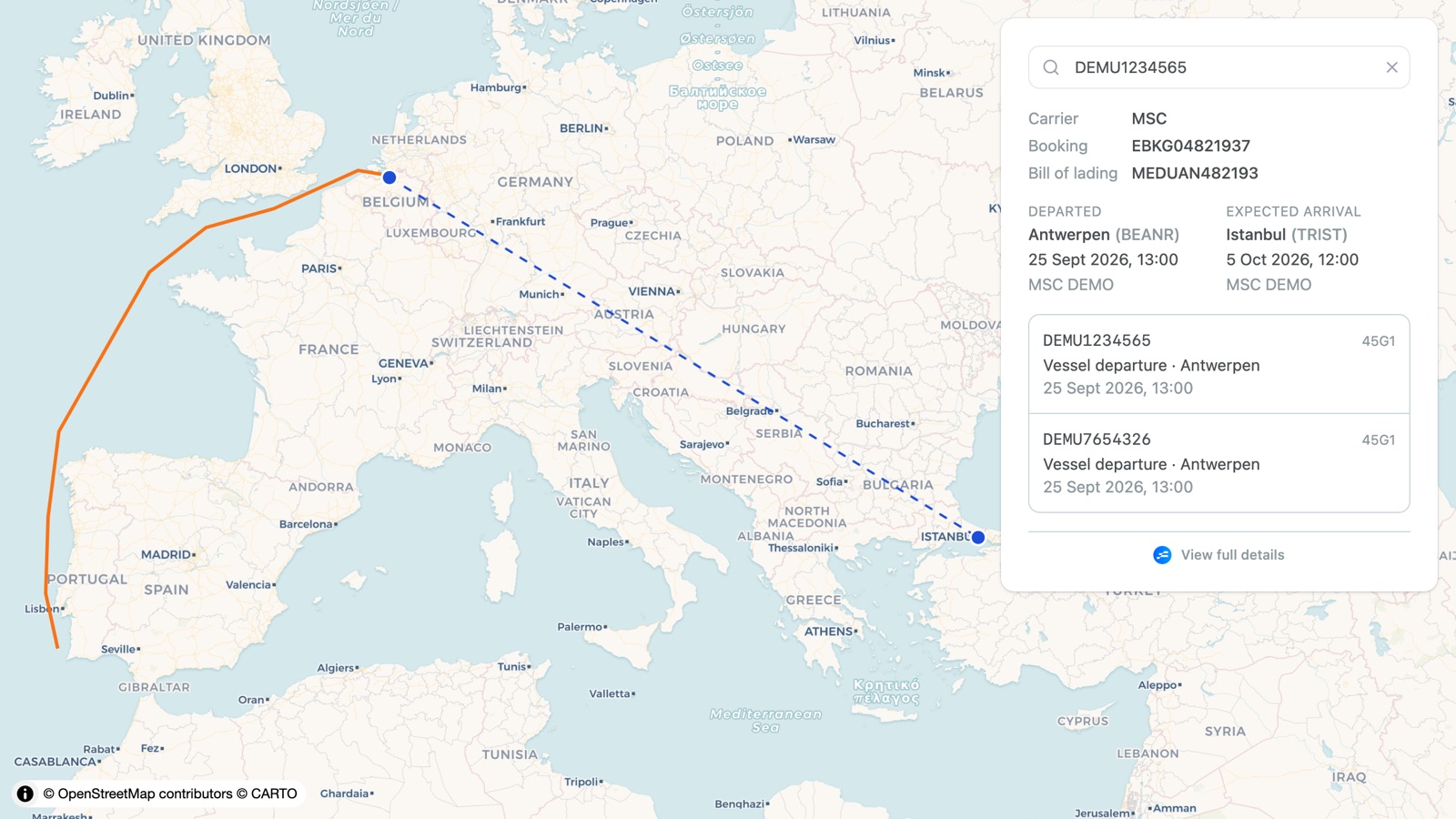
Widgets embedded from widget.dockflow.com with a key from Settings → Organisation → Web widget keep working. They are documented under API v2 › Web-widget (iframe). The widget on this page runs on embed.dockflow.com and needs an API Console key with the Widget scope.
Integration
- In the API Console, open API Keys and click Create Key.
- Give it a name, pick the environment, and select only the Widget scope. A widget key cannot carry other scopes, because it ends up in your page source.
- Click Create Key. The dialog shows the key and a ready-made embed snippet. Click Copy Embed Code. The key is shown only once.
- Paste the snippet into your HTML page:
<iframe
    src="https://embed.dockflow.com/track?key=YOUR_WIDGET_KEY"
    width="100%"
    height="600"
    style="border: 0"
></iframe>
From creating the key to finding a shipment on your own page:
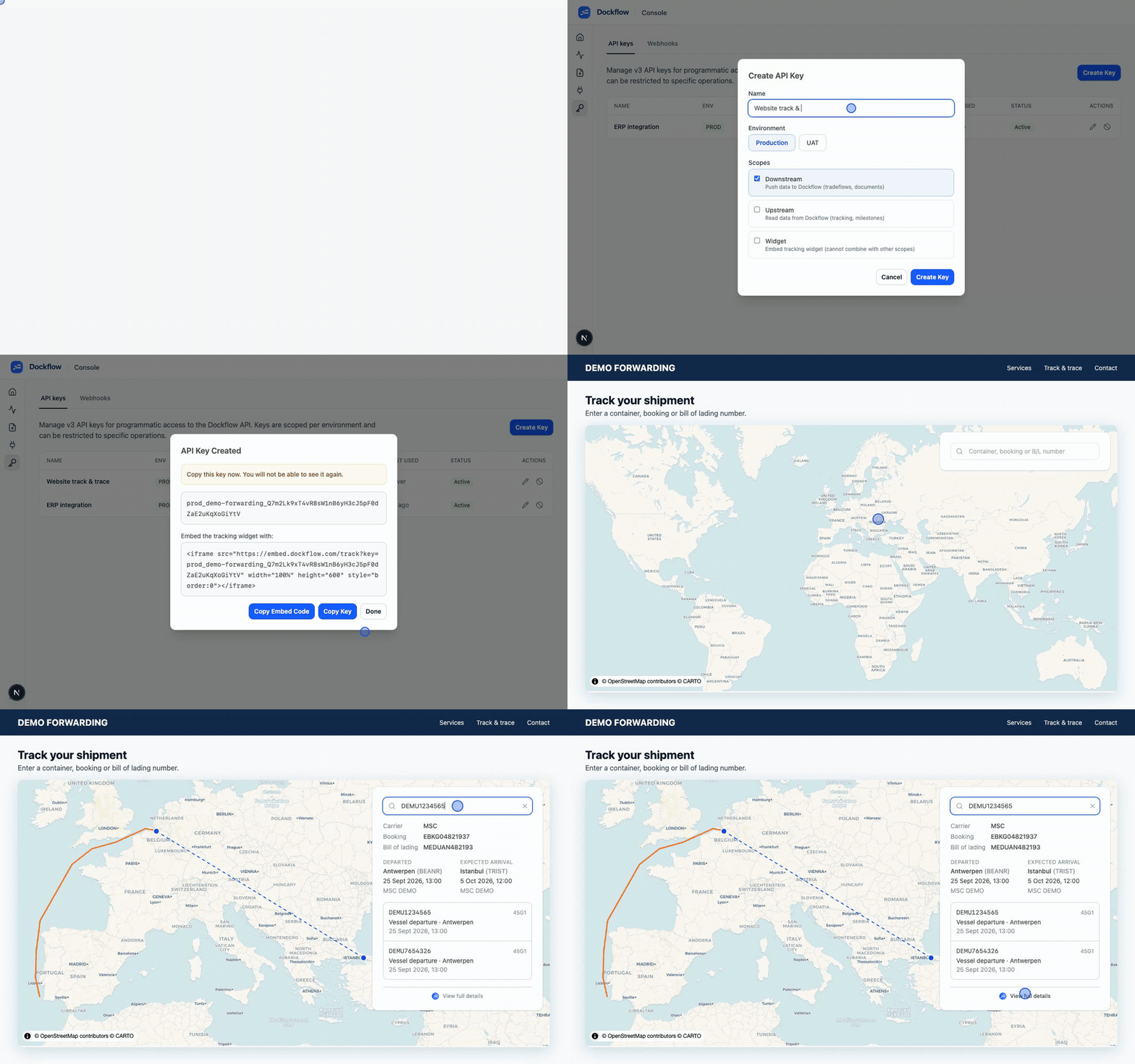
Shown with demo data.
The key is part of the page source, so anyone visiting your page can use it to search your organisation's shipments. A widget key can only search. It is refused by every other Trident endpoint. You can revoke it in the API Console at any time.
Arguments
key: (mandatory) Your widget key. Without it, the widget asks for one and the search box stays disabled.search: (optional) A reference to look up as soon as the widget loads, for example when you link to one specific shipment.
https://embed.dockflow.com/track?key=YOUR_WIDGET_KEY&search=TCNU1929808
A uat_… key searches your UAT organisation, and a prod_… key searches production. The widget picks the matching API host from the key.
How it behaves
- The search panel sits on the right. It searches as the visitor types, from 6 characters on.
- The result shows the carrier, booking and bill of lading, the departure and (expected) arrival with their dates, and each container with its latest status, place and date. Dates are shown in the port's own time zone.
- The map draws the leg from origin to destination and the vessel's track, and zooms to fit the whole journey.
- View full details opens the shipment in your Dockflow portal, in a new browser tab rather than inside your iframe. It uses your organisation's own portal domain when you have one (for example
yourcompany.dockflow.com), andapp.dockflow.comotherwise. The visitor signs in there with their own Dockflow account. - When nothing matches, the panel shows No shipment found.
If your page sandboxes the iframe (sandbox="…"), add allow-popups so that View full details can open its tab.
Customization
You control the size and border of the widget through the iframe attributes (width, height, style). Give it at least 720px of width, so that the map stays visible next to the results panel.
If the visitors of your page have no Dockflow account, you can leave out the View full details link. In the API Console, open API Keys and uncheck Show "View full details" link on the widget key. The change applies to the next search, with no change to your embed code.
The content of the widget cannot be styled from your page. It is served from embed.dockflow.com, so your CSS does not reach inside the iframe. For branding or colour changes, reach out to [email protected].
Build your own UI
To show the same data in your own interface instead of an iframe, call the Widget API with the same key.