Flags overview
Under Automations, the Flags tab is where you configure automation triggers (such as ETA changes or a container being discharged) and decide who gets notified, and how.
Use the Overview tab to build and manage automation rules end-to-end. The Flags tab focuses on per-event-type settings: backup contacts, sharing with partners, and notification behaviour for each team member.
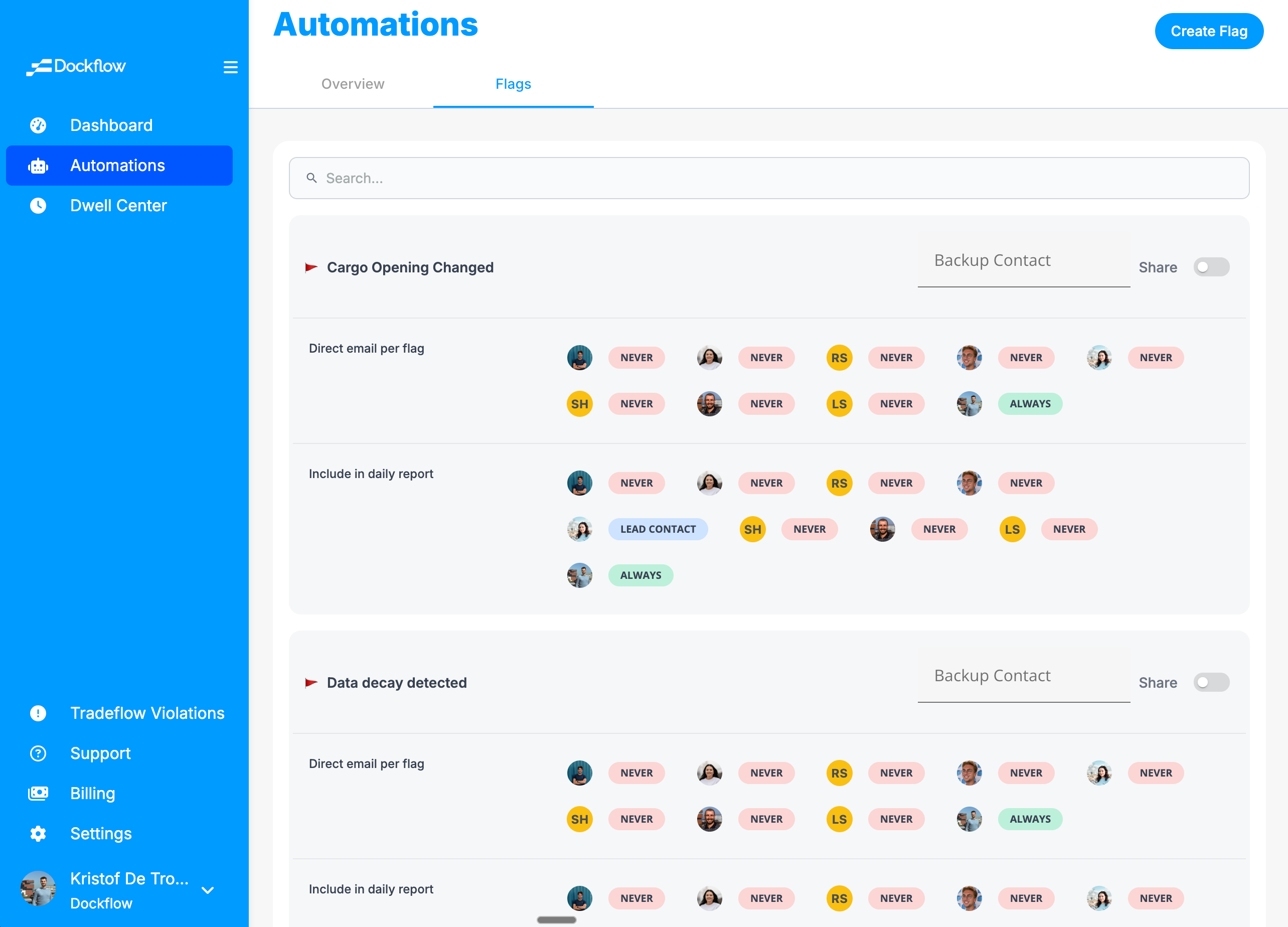
Figure: Flags tab showing trigger sections, backup contact, Share, and per-person notification rows.
What is a “flag” here?
In this screen, a flag is tied to a type of shipping event Dockflow can detect—for example:
- ETA change — the estimated arrival time for a shipment was updated.
- Container discharged — a container was discharged from the vessel (unloaded at the port of discharge).
Each expandable section on the Flags tab groups the settings for that event type: who is notified, whether emails go out immediately or in a digest, and whether the event is shared with partners on the tradeflow.
How automations set flags
Flags are not created manually on this screen for day-to-day work—they are set by automations when their conditions match real events. On Automations → Overview, you define rules (triggers, conditions, and outcomes). When an automation runs—for example because an ETA changed or a discharge milestone was recorded—Dockflow can apply a flag to the relevant tradeflow or container so it surfaces on the dashboard and in your workflows. The Flags tab then defines everything around that event: who is notified and how, backup contact, and whether the signal is shared with partners. So Overview answers when and why a flag appears; the Flags tab answers who needs to know and how loudly.
For step-by-step examples of automations that set flags, see ETA change and discharge notifications. This page covers the shared concepts for the Flags tab; those guides walk through building the underlying automation rules.
Where flagged tradeflows appear: Dashboard Flags tab
After an automation sets a flag, the affected work shows up on the Dashboard under the Flags tab (alongside Tradeflows, Discharged at POD, Containers, Arriving, and other header tabs). Each row is an active flag on a tradeflow: you get B/L, booking, a name that reflects the automation (for example NEW ETA CHANGE (+1 days) or Awaiting temperature data), and when the flag was created. Filters above the table let you narrow by flag type, active state, people, and more.
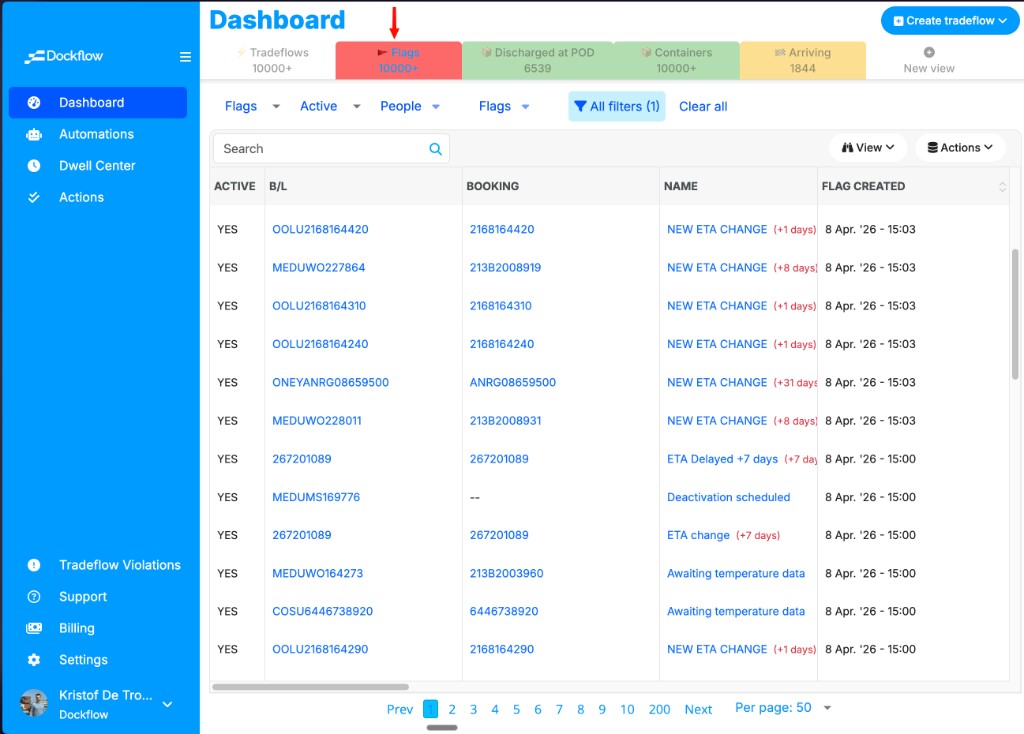
Figure: Dashboard Flags tab—operational list of automation-driven flags.
For search, views, and column options on the dashboard, see Using the Dashboard.
What you can configure
Backup contact
The backup contact field lets you designate someone who should be covered when the primary routing of notifications needs a fallback (for example if a role is unassigned). Use it so critical events still reach a person even when the main contact is not set.
Share
The Share toggle controls whether this flag’s visibility is extended to partners on shared tradeflows—so external collaborators can see the same signal you see. When Share is off, the flag behaviour stays internal to your organization.
For more detail on partner visibility, see Sharing flags with partners.
Notifications: two channels per person
For each event section, Dockflow shows your team members (avatars) and two notification dimensions:
| Row | Meaning |
|---|---|
| Direct email per flag | Whether this person receives an individual email as soon as the event happens and the flag logic applies. |
| Include in daily report | Whether this person receives the event in the daily summary email instead of (or in addition to your org’s rules for digests). |
Each cell shows a status such as ALWAYS or NEVER:
- ALWAYS — this channel is on for that person for this event type.
- NEVER — this channel is off for that person for this event type.
So you can keep some people on immediate email, others on digest only, and exclude people who do not need noise—per event type and per person.
For delivery options, daily reports, and how to tune volume, see Managing notifications.
How this fits together
- Event happens (ETA updates, discharge, etc.).
- Automations on Overview run and set flags when their rules match—see ETA change and discharge notifications for examples.
- This Flags tab configures sharing, backup contact, and who gets which emails for each event family once flags are in play.
- Your team sees updates on the dashboard and in their inbox, according to these settings.
Next steps
- Set up or refine ETA change automations.
- Configure discharge notifications.
- Tune notification and sharing behaviour.