Bulk Import Tradeflows
Dockflow supports three methods for creating tradeflows in the platform. This guide focuses on bulk import via Excel templates, the most efficient approach for adding multiple shipments simultaneously.
Creation Methods Overview
| Method | Best For | Capacity |
|---|---|---|
| Manual Entry | Single shipments or quick ad-hoc entries | 1 at a time |
| API Integration | Automated system-to-system integration | Unlimited |
| Bulk Import (Excel) | One-time imports, periodic updates, migrations | Up to 1,000 per file |
| A file you send us | Accounts set up to email or schedule an export - see how my orders reach Dockflow | Per your agreed format |
Bulk import is ideal for:
- Onboarding: Importing existing shipments when starting with Dockflow
- Periodic Updates: Adding batches of new bookings or containers
- Partner Data: Importing shipments received from partners via Excel
- Data Migration: Moving from another system to Dockflow
Smart Mapping: Upload Any Excel
You do not have to use the Dockflow template. With smart mapping (also called magic upload), you upload any Excel file (your own format, or one you received from a partner) and Dockflow automatically detects the columns and maps them onto Dockflow fields. You then review and confirm the suggested mapping before importing.
This is the fastest way to import recurring files you cannot reformat, for example a fixed export from a partner's system.
How It Works
- Navigate to Dashboard -> Tradeflows and click Import.
- Click Upload any Excel and choose your file. Leave Enable automatic mapping if Dockflow recognises the template ticked (default).
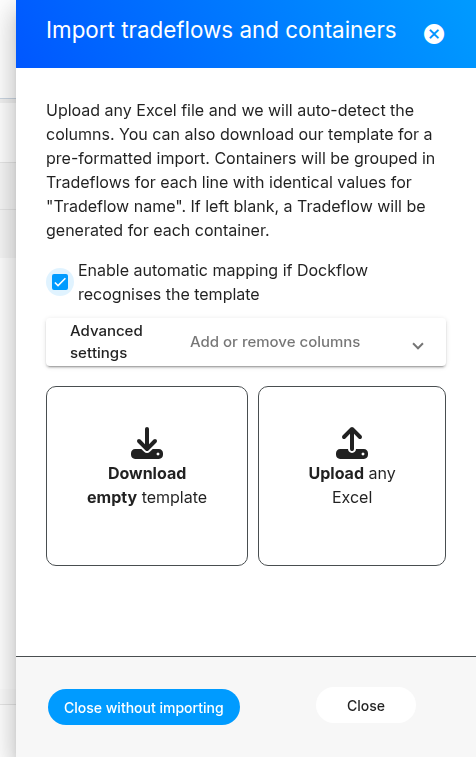 Figure: The import panel. Choose Upload any Excel to use smart mapping, or Download empty template for the pre-formatted template.
- Dockflow analyzes the file:
- It finds the header row automatically (it scans the first rows and picks the one with the most recognizable columns), so your headers do not need to be on row 1.
- It matches each of your columns to a Dockflow field and shows a colour-coded confidence score (a percentage) for each suggested match.
- The mapping confirmation step opens, showing a "Your column -> Import as" table and a preview of the first rows of your data.
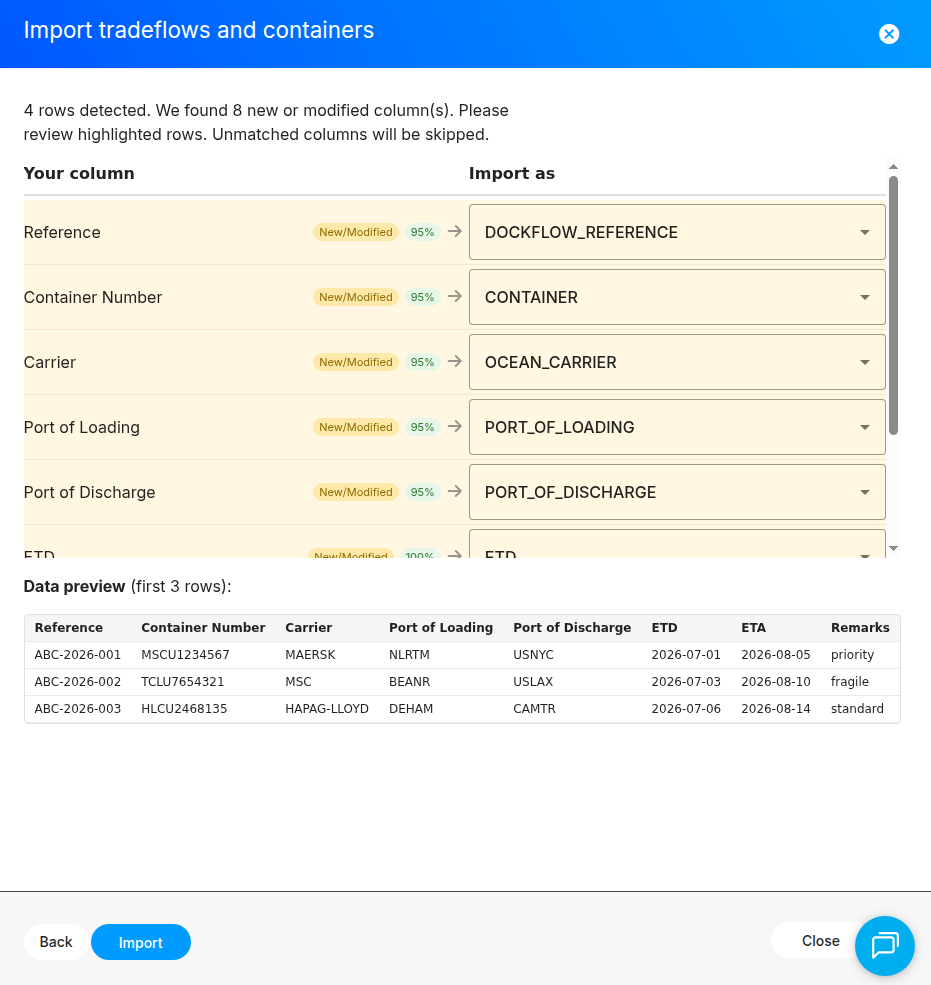 Figure: The mapping confirmation step. Each of your columns is matched to a Dockflow field with a confidence score, and the first rows of your data are previewed below.
Reviewing and Confirming the Mapping
For each of your columns you can:
- Keep the suggested Dockflow field, or
- Change it by picking a different field from the dropdown, or
- Skip this column so its data is not imported.
Any column Dockflow cannot match is left unmapped and will be skipped unless you map it manually.
One column must map to Dockflow Reference (the tradeflow reference). Each row needs a value of at least 3 characters. If no column maps to Dockflow Reference, or the mapped column has empty cells, the Import button stays disabled and a message explains what to fix. Rows in the same file that share a Dockflow Reference value are grouped into one tradeflow.
When the mapping looks right, click Import. You immediately see how many rows will be imported and how many were ignored (with the reason). The import itself then runs in the background, exactly like the template import, and the tradeflows appear shortly after.
Which Fields You Can Map
Dockflow recognizes common header names for these fields (the required one is marked):
| Group | Fields |
|---|---|
| Identifiers | Dockflow Reference (required), Container, Bill of Lading, Booking Reference |
| Partners | Partner Name, Partner Reference, Partner Role (up to 10 partners) |
| Ports & schedule | Port of Loading, Port of Discharge, ETD, ETA |
| Vessel & carrier | Vessel Name, Ocean Carrier |
| Commercial | Incoterms |
| Assignment | Lead Contact, Team |
| Free time | In-port, Out-of-port, Combined, Storage, Electricity (free days) |
| Custom | Any custom property configured for your organization |
You do not need to match these names exactly. Smart mapping recognizes common variations (for example "POL", "Load Port", or "Origin" all map to Port of Loading) and uses fuzzy matching for close spellings.
Remembering Your Templates
When you confirm a mapping, Dockflow remembers it for that file layout, so you do not have to redo the work each time:
- The next time you upload a file with the same columns, your saved mapping is pre-filled.
- If every column is recognized from a remembered mapping (and Enable automatic mapping is on), Dockflow auto-confirms and imports immediately, without showing the mapping step.
- If the file has new or changed columns, only those are highlighted as New/Modified so you review just what changed.
- Up to 10 different layouts are remembered.
Saved mappings are stored in the browser you import from, so they are not shared across devices or with colleagues. Import from the same browser to reuse them.
Smart Mapping vs the Dockflow Template
| Dockflow template | Smart mapping (any Excel) | |
|---|---|---|
| Source file | Pre-formatted template you download from Dockflow | Your own or a partner's Excel, in any column layout |
| Column mapping | Fixed: the template's columns are already mapped | Auto-detected, then you confirm or adjust |
| Mapping step | Skipped: a recognized Dockflow template imports directly | Shown the first time; auto-confirmed on later identical files |
| Best for | Starting fresh or one-off imports | Recurring files from another system you cannot reformat |
Both paths create and update the same tradeflows and support the same fields. Choose whichever fits the file you already have.
Step 1: Download the Template
- Navigate to Dashboard → Tradeflows
- Click the Import button in the top-right corner
- Select Download Excel Template
- Save the file to your computer
Template Specifications
- Format:
.xlsx(Excel 2007+) - Maximum rows: 1,000 tradeflows per upload
- Character encoding: UTF-8
- File size limit: 10 MB
Step 2: Fill the Template
The template contains multiple columns for shipment information. Only a few fields are required, while the rest are optional but recommended for better tracking.
Required Fields
At minimum, you must provide:
| Field | Description | Example |
|---|---|---|
| Internal Reference | Your unique shipment identifier | SHIP-2026-001 |
Plus at least ONE of:
| Field | Description | Example |
|---|---|---|
| Container Number | Full container number | MSCU1234567 |
| Bill of Lading | B/L number | MAEU123456789 |
| Booking Reference | Carrier booking number | BOOK123456 |
Each row must contain:
- An Internal Reference
- At least one of: Container Number, Bill of Lading, or Booking Reference
Rows missing these required fields will be skipped during import with an error message.
Optional Fields (Recommended)
Including these fields improves visibility and enables automated tracking:
Partner & Contact Information
| Field | Description | Example |
|---|---|---|
| Partner Name | Business partner or customer name | Acme Corp |
| Lead Contact | Person responsible for this shipment | [email protected] |
| Shipper | Origin party | ABC Manufacturing |
| Consignee | Destination party | XYZ Distribution |
| Notify Party | Party to notify upon arrival | [email protected] |
Important: Partner names must match exactly with partners already added in your Dockflow account. See How to Add a Business Partner for setup instructions.
Port & Location Details
| Field | Description | Example |
|---|---|---|
| Port of Loading (POL) | Origin port code | NLRTM (Rotterdam) |
| Port of Discharge (POD) | Destination port code | USNYC (New York) |
| Place of Receipt | Origin location | Amsterdam, NL |
| Place of Delivery | Final destination | New York, NY, USA |
Port Codes: Use UN/LOCODE format (5 characters). See supported ports or search within Dockflow.
Schedule & Timeline
| Field | Description | Format | Example |
|---|---|---|---|
| ETD (Estimated Time of Departure) | Expected departure date | YYYY-MM-DD | 2026-02-15 |
| ETA (Estimated Time of Arrival) | Expected arrival date | YYYY-MM-DD | 2026-03-20 |
Date Format: Always use ISO 8601 format (YYYY-MM-DD). Other formats may cause import errors.
Vessel & Carrier
| Field | Description | Example |
|---|---|---|
| Vessel Name | Name of the vessel | MSC OSCAR |
| Voyage Number | Voyage or rotation number | 026E |
| Ocean Carrier | Shipping line | MSC, MAERSK, CMA CGM |
Carrier Tracking: Including vessel and carrier information enables automatic tracking updates. See Supported Carriers for the full list.
Commercial Terms
| Field | Description | Example |
|---|---|---|
| Incoterms | Trade terms | FOB, CIF, DAP, DDP |
| Commodity | Cargo description | Electronics, Apparel, Machinery |
| Container Type | Equipment type | 20DC, 40HC, 40RF |
| Weight | Cargo weight (kg) | 18500 |
| Volume | Cargo volume (m³) | 25.5 |
Team Assignment
| Field | Description | Example |
|---|---|---|
| Team | Assign to an existing team | Import Team West, Export Team EU |
Team Setup: Teams must already exist in your Dockflow account. See Teams Management for instructions.
Custom Properties
| Field | Description | Example |
|---|---|---|
| Custom Field 1-10 | User-defined fields | PO Number, Customer ID, Priority Level |
Configuration: Custom properties are configured in Settings → Organization → Custom Properties. Define field names and types before using them in imports.
Step 3: Upload the Template
Once your template is complete:
- Return to Dashboard → Tradeflows
- Click the Import button
- Select Upload File
- Choose your completed Excel file
- Click Upload to begin processing
Processing Timeline
| File Size | Estimated Processing Time |
|---|---|
| 1-100 rows | 2-5 minutes |
| 100-500 rows | 10-20 minutes |
| 500-1,000 rows | 30-50 minutes |
After upload, processing happens in the background. You can:
- Continue working in Dockflow
- Close your browser
- Check import status in Settings → Import History
You'll receive an email notification when processing completes.
Import Status Notifications
The system sends email notifications for:
- Successful import - All rows processed successfully
- Partial success - Some rows imported, others skipped (with error details)
- Failed import - Critical errors prevented processing
Best Practices
What to Import
✅ DO import:
- Shipments that haven't departed yet (in booking phase)
- Shipments currently in transit
- Shipments that arrived recently (within last 3 months)
❌ DON'T import:
- Completed shipments older than 3 months
- Canceled bookings
- Duplicate entries (check existing tradeflows first)
Why Skip Old Shipments?
Importing completed shipments from several months ago:
- Creates unnecessary data volume
- Skews analytics and reporting
- Generates false notifications for old events
- Wastes processing resources
Focus on active and upcoming shipments. Historical data older than 3 months provides minimal operational value and can clutter your dashboard.
Data Quality Tips
Before uploading:
- Remove duplicates - Check for duplicate container numbers or references
- Validate dates - Ensure ETD is before ETA
- Check port codes - Use UN/LOCODE format (5 characters)
- Verify partner names - Must match existing partners exactly
- Remove test data - Delete any placeholder or test rows
Common errors to avoid:
| Error | Impact | Solution |
|---|---|---|
| Invalid date format | Row skipped | Use YYYY-MM-DD format |
| Non-existent partner | Row skipped | Add partner first or leave blank |
| Duplicate container | Creates duplicate tradeflow | Check existing shipments |
| Missing required fields | Row skipped | Ensure Internal Reference + one ID field |
Troubleshooting
Import Failed
Possible causes:
- File format is not
.xlsx - File exceeds 10 MB
- File contains more than 1,000 rows
- File is corrupted or password-protected
Solution: Download a fresh template and copy your data carefully.
Some Rows Were Skipped
Check the import report (sent via email) for specific errors:
| Error Message | Cause | Fix |
|---|---|---|
| "Missing required field: Internal Reference" | Empty Internal Reference column | Fill in unique reference for each row |
| "No valid identifier found" | Missing Container/B/L/Booking | Add at least one identifier |
| "Invalid date format" | Wrong date format | Use YYYY-MM-DD |
| "Partner not found" | Partner doesn't exist | Add partner first or leave blank |
| "Invalid port code" | Incorrect UN/LOCODE | Verify port code format |
Processing Takes Too Long
If processing exceeds 50 minutes:
- Check Settings → Import History for status
- Verify file size is under 10 MB
- Contact support if still processing after 1 hour
Duplicate Tradeflows Created
If you accidentally upload the same file twice:
- Navigate to Dashboard → Tradeflows
- Filter by Import Date (use the date you uploaded)
- Select duplicate tradeflows
- Use Bulk Actions → Delete to remove duplicates
Wait for the first import to complete before uploading the same data again. Check Import History to monitor status.
Advanced: Updating Existing Tradeflows
The bulk import process can also update existing tradeflows if you include the Internal Reference of an existing shipment.
How it works:
- If the Internal Reference already exists → Updates the tradeflow
- If the Internal Reference is new → Creates a new tradeflow
Common update scenarios:
- Adding container numbers to booked shipments
- Updating ETA/ETD dates
- Changing partner assignments
- Adding vessel information
Updates overwrite existing field values. If you leave a field blank in your update file, it will clear that field in the tradeflow.
Alternative Methods
Manual Entry
For single shipments or quick entries, use the manual creation interface:
- Navigate to Dashboard → Tradeflows
- Click + Create Tradeflow
- Fill in the form
- Click Save
When to use: Ad-hoc shipments, urgent entries, or when you only have 1-2 shipments to add.
API Integration
For automated, system-to-system integration, use the Dockflow API:
- Real-time synchronization with your TMS, ERP, or WMS
- No file size limits
- Bi-directional updates (send and receive data)
See Upstream API documentation for integration details.
Related Articles
- How to Add a Business Partner - Set up partners before importing
- Teams Management - Organize shipments by team
- How to Add a Lead Contact - Assign responsibility for shipments
- Supported Carriers - Carriers with automatic tracking
- Upstream API - Automated integration alternative
Need Help?
- Template questions: [email protected]
- Import errors: Include the error report from your email in your support request
- API integration: Contact [email protected] for API access
Last updated: June 16, 2026