How do I login to Dockflow?
Complete instructions for accessing your Dockflow account, covering initial setup and ongoing login procedures.
Accessing the Platform
Visit the login page at https://app.dockflow.com/. Your forwarder might also have a custom access page set up.
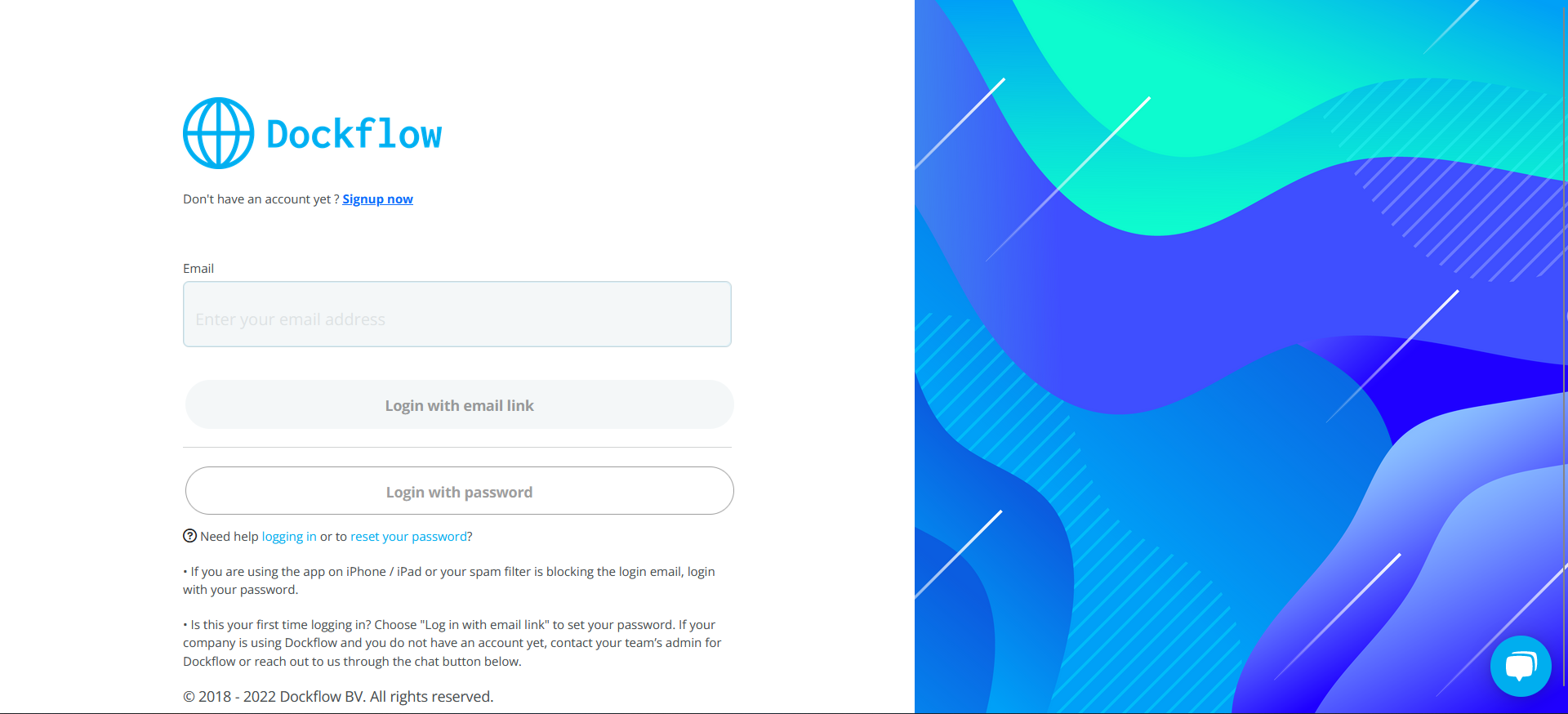 Figure 1: Dockflow login page
Two Authentication Methods
Dockflow offers two ways to authenticate, depending on your device and preferences.
Email Link Method (Recommended for Desktop/Android)
- Select "Login with email link"
- Check your inbox for the access link
- Click the link to log in automatically
This method is recommended for non-iOS devices.
Password Method (Recommended for iOS)
- Choose "Login with password"
- Enter your email address
- Enter your password
- Select "Sign in with password"
First-Time Users
New accounts receive an automatic email with a login link. Upon opening the link:
- You'll be prompted to create a secure password
- Set your password
- Gain immediate access to your account
Regular Login
After your initial setup, you can choose between:
- Password-free "magic login link" - Sent to your email each time you want to log in
- Traditional password authentication - Use the password you created during setup
Choose the method that works best for your device and preferences.
Common Issues
iOS Gmail/Mail Users
Issue: Magic links aren't recommended on iOS devices when using the Gmail or Mail app.
Solution: Use the password method instead for a more reliable login experience.
Spam Filters
Issue: Some IT departments might block emails containing complex links such as the magic link used by Dockflow.
Solutions:
- Check your spam/junk folder
- Contact your IT department to whitelist Dockflow emails
- Use the password method as an alternative
Need Help?
If you're still experiencing login issues:
- Real-time chat support - Available in the bottom-right corner of the login page
- Email support - [email protected]
- Technical issues - GitHub Issues
Migrated from: https://support.dockflow.com/how-do-i-login-to-dockflow Last updated: January 28, 2026