Data Quality Dashboard
Monitor data quality metrics and identify containers with data issues. The Data Quality Dashboard provides real-time visibility into the health and timeliness of your tracking data.
Access: console.dockflow.com/data-quality
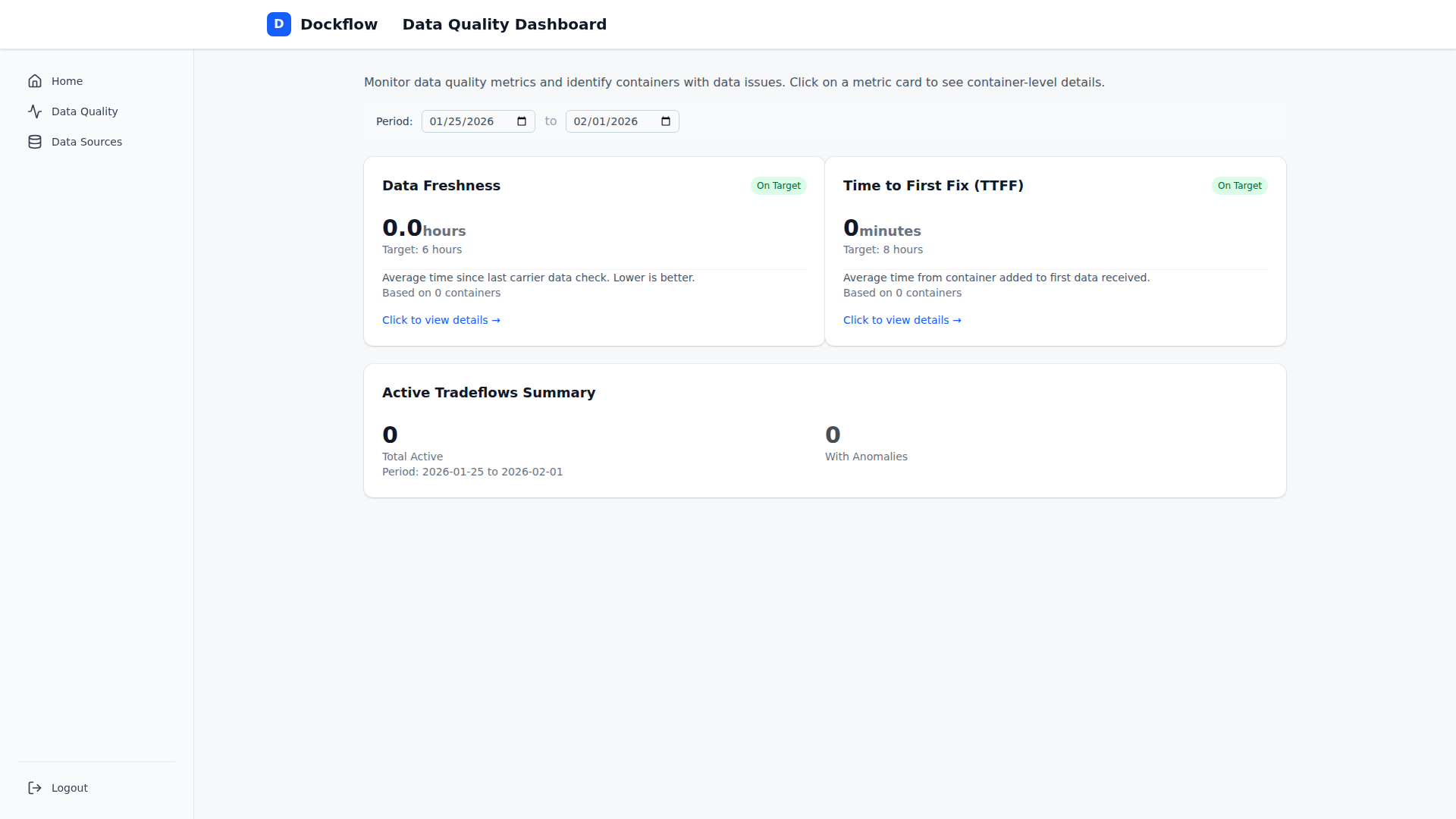 Data Quality Dashboard showing Freshness and TTFF metrics
Metrics Overview
| Metric | What it measures | Target | Status |
|---|---|---|---|
| Data Freshness | Hours since last carrier data check | 6 hours | Available |
| TTFF | Hours from container added to first data | 8 hours | Available |
| Confirmation Delay | Hours from event to confirmation | TBD | Coming Soon |
Each metric displays:
- Current average value
- Target threshold
- Status indicator (On Target / Warning / Critical)
- Container count
- Click-through to drill-down view
Active Tradeflows Summary
The dashboard shows a summary of your active tradeflows:
- Total Active: Number of active tradeflows in the selected period
- With Anomalies: Tradeflows flagged with data anomalies
Date Range Filter
Use the date picker to filter metrics by period:
- Default: Last 7 days
- TTFF uses
first_fixtimestamp for filtering - Freshness shows current state (not historical)
Container Drill-Down
Click any metric card to see individual containers:
- Sorted by worst or best performing
- Paginated view (20 per page)
- Export to CSV (up to 1,000 rows)
Next Steps
- Data Freshness →
- Time to First Fix (TTFF) →
- Confirmation Delay → (coming soon)